Connect M-Pesa With Your Daraja Keys
This is the fastest way to connect, and you stay in control the whole way through. You create the Daraja account yourself, in your own name, and KodiSawa never sees your M-Pesa password or any one-time code.
It takes about 15 minutes. Have your Pay Bill or till number and your M-Pesa portal login to hand before you start.
Table of Contents
- First: Pay Bill or till?
- What you need first
- Step 1: Create a Daraja account
- Step 2: Click Go Live
- Step 3: Enter the OTP, pick your APIs, and go live
- Step 4: Copy your two keys
- Step 5: Paste them into KodiSawa
- Step 6: Connect
- Test it
- If something does not work
First: Pay Bill or till?
Safaricom sells two different ways to take money, and which one you have changes a few steps below. Check before you start.
Pay Bill. Tenants choose Pay Bill, type your business number, then type an account number. You get one number, and it does two jobs: tenants dial it, and Safaricom accepts it as your Organization Short Code.
Buy Goods (a till). Tenants choose Buy Goods and Services and type your till number. There is no second field. Here you get more than one number, and mixing them up is the single most common way this setup goes wrong:
| Number | What it is |
|---|---|
| Till number | The one printed on your sticker. Tenants dial this. Daraja will not accept it. |
| Store number | The one Daraja and KodiSawa need. Safaricom's own forms write this field as "Buy goods - HO/Store Number". |
| Head office number | Only businesses running several stores get a separate one. If you have one store, your store number is this too. |
Most single-till businesses have two numbers, the till and the store number, so do not go hunting for a third. Either way the point is the same: the number your tenants dial is not the number you give Daraja.
If you genuinely only ever had one number, you almost certainly have a Pay Bill.
What changes if you are on a till
Buy Goods has no account number field, so Safaricom sends us no account reference. KodiSawa then has only one way to tell who paid: the phone number the money came from.
That works, and most tenants pay from their own phone. But it means:
- Every tenant record needs the phone number they actually pay from.
- A tenant paying from a spouse’s or a shopkeeper’s phone will not match automatically.
- Unmatched payments are never lost. They land on the Payments page and you assign them with two clicks.
If you want every payment matched automatically with no exceptions, a Pay Bill is the only way to get that, because only Pay Bill has an account number field.
What you need first
Three things:
- Your Pay Bill number, or on a till both your till number and your store number
- Your business name exactly as registered with Safaricom (not your trading name)
- Your M-Pesa portal username, the one you use at org.ke.m-pesa.com
That last one catches people out, and it is the most common place this whole process stalls. Plenty of business owners have never logged into the portal. Every route to connecting needs it, so sort it out first.
How to get your M-PESA portal username
Safaricom issue it, not Daraja. When your Pay Bill or till was set up they emailed the business a username, the shortcode and a first-time password, and those three are what log you in at org.ke.m-pesa.com. Check the inbox the business was registered with before you do anything else, it is usually sitting there.
If nobody ever received it, or the person who did has left, fill in Safaricom's M-PESA Business Administrator form and they will create one:
- Tick New Administrator on M-PESA G2. That is the portal at org.ke.m-pesa.com.
- Preferred administrator username is yours to choose. It is not assigned to you.
- The personal email address you give is where the credentials are sent, so use one you actually read.
- For the short code, use your Pay Bill number, or on a till your store number. The form labels it "Buy goods - HO/Store Number".
What you attach depends on how the business is registered. If you are registered as an individual it is just the signed form plus a copy of your ID, both sides. A sole proprietor adds a business permit or certificate of registration. A limited company needs a CR12 no older than 90 days and two signatories.
Send it to M-PESABusiness@safaricom.co.ke, or take it into a Safaricom shop. Their business line is 0722 002 222.
Already have an admin account but lost the password? Same form, but tick Password Reset under category 2 instead of creating a new one.
Step 1: Create a Daraja account
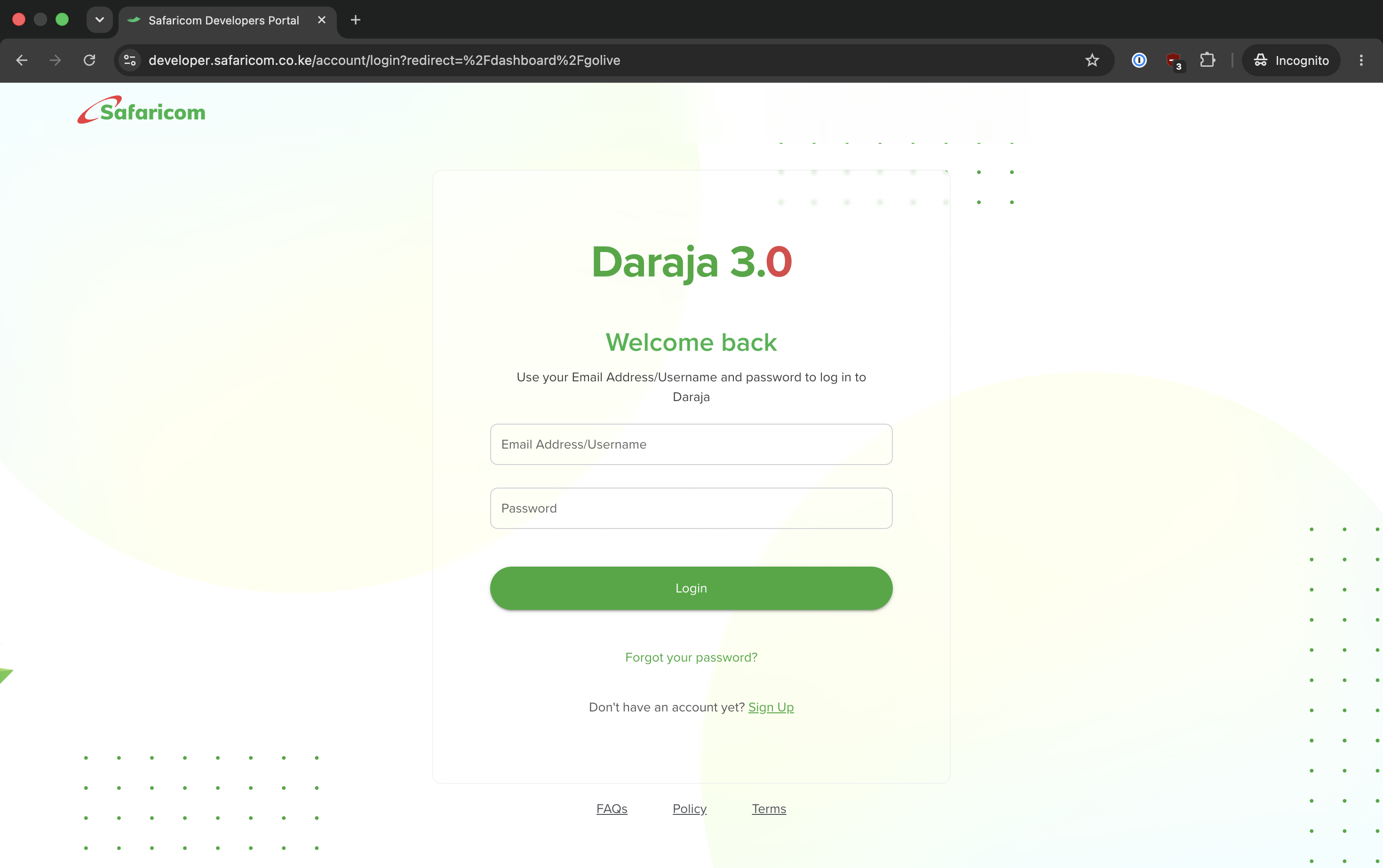
Go to developer.safaricom.co.ke and sign up. Use the same email address you use for org.ke.m-pesa.com, so Safaricom can tie the two together.
Step 2: Click Go Live
You do not need to create a sandbox app first. Sandbox is for developers testing code; you are connecting a real business number.
In the left sidebar, click Go Live.
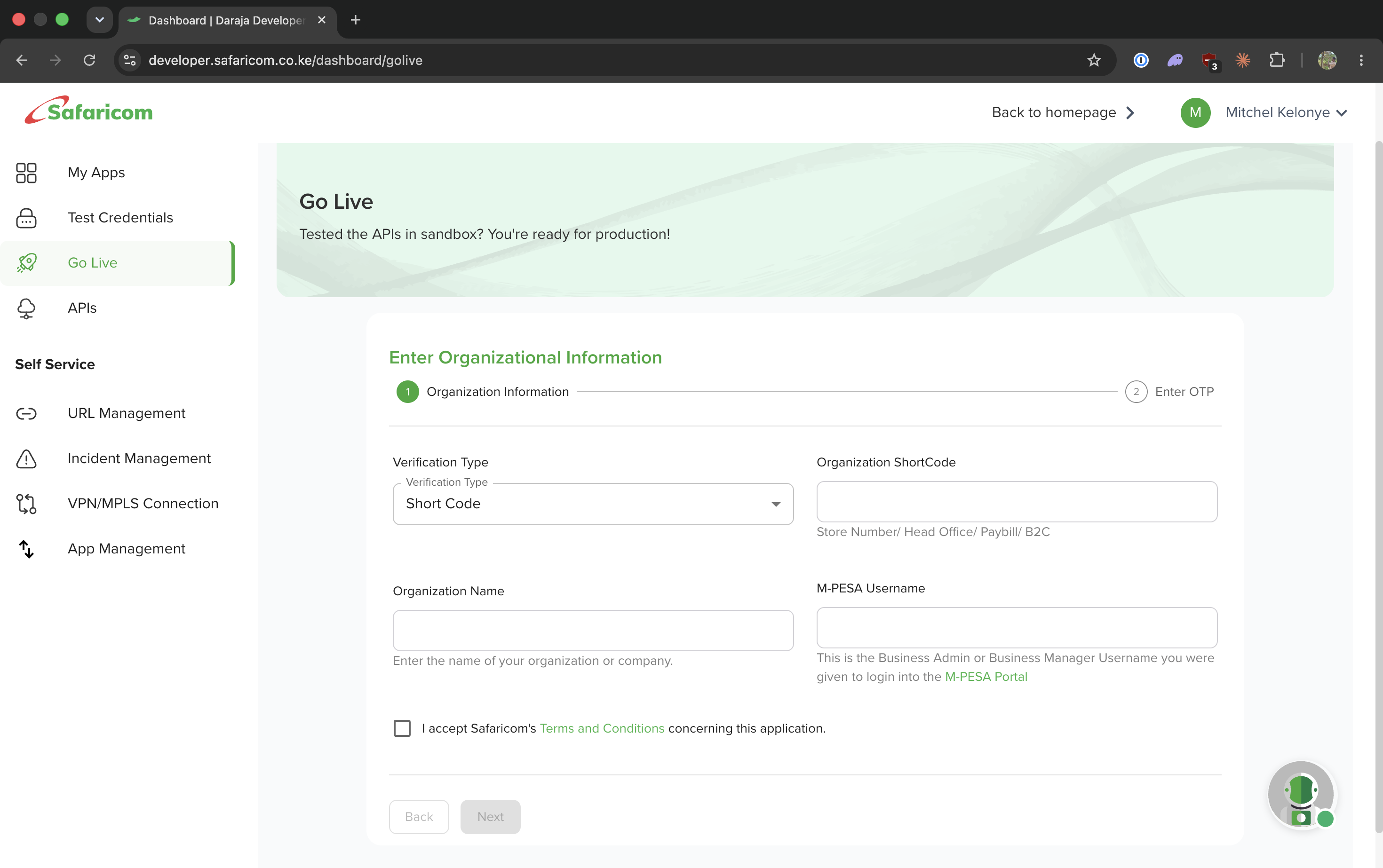
Fill in four things:
- Verification Type — choose Short Code
- Organization ShortCode — your Pay Bill number, or on a till your store number (the field means the same thing Safaricom's forms call "HO/Store Number"). Not the till number: Daraja will not accept it.
- Organization Name — your business name as registered with Safaricom
- M-PESA Username — your Business Admin or Business Manager username from the M-Pesa portal
Then tick the terms box and continue.
Step 3: Enter the OTP, pick your APIs, and go live
Safaricom sends a one-time code to your phone, and it expires in five minutes. You type it in yourself, so nobody else needs to see it.
Next you choose which APIs the app may use. Tick Customer To Business (C2B) — that is the one that tells KodiSawa when a tenant has paid. If you also want to be able to send a tenant a payment prompt from KodiSawa, tick M-Pesa Express (STK Push) as well.
Then submit. Safaricom creates the app against your shortcode, and it goes live.
One thing worth knowing before you submit: a shortcode can only have one live app. If you see "An app with the shortcode provided already exists", one has already been created for that number, and you should use that existing app's keys rather than making a second one.
Step 4: Copy your two keys
Once you are live, open the app Safaricom created and you will see a Consumer Key and a Consumer Secret.
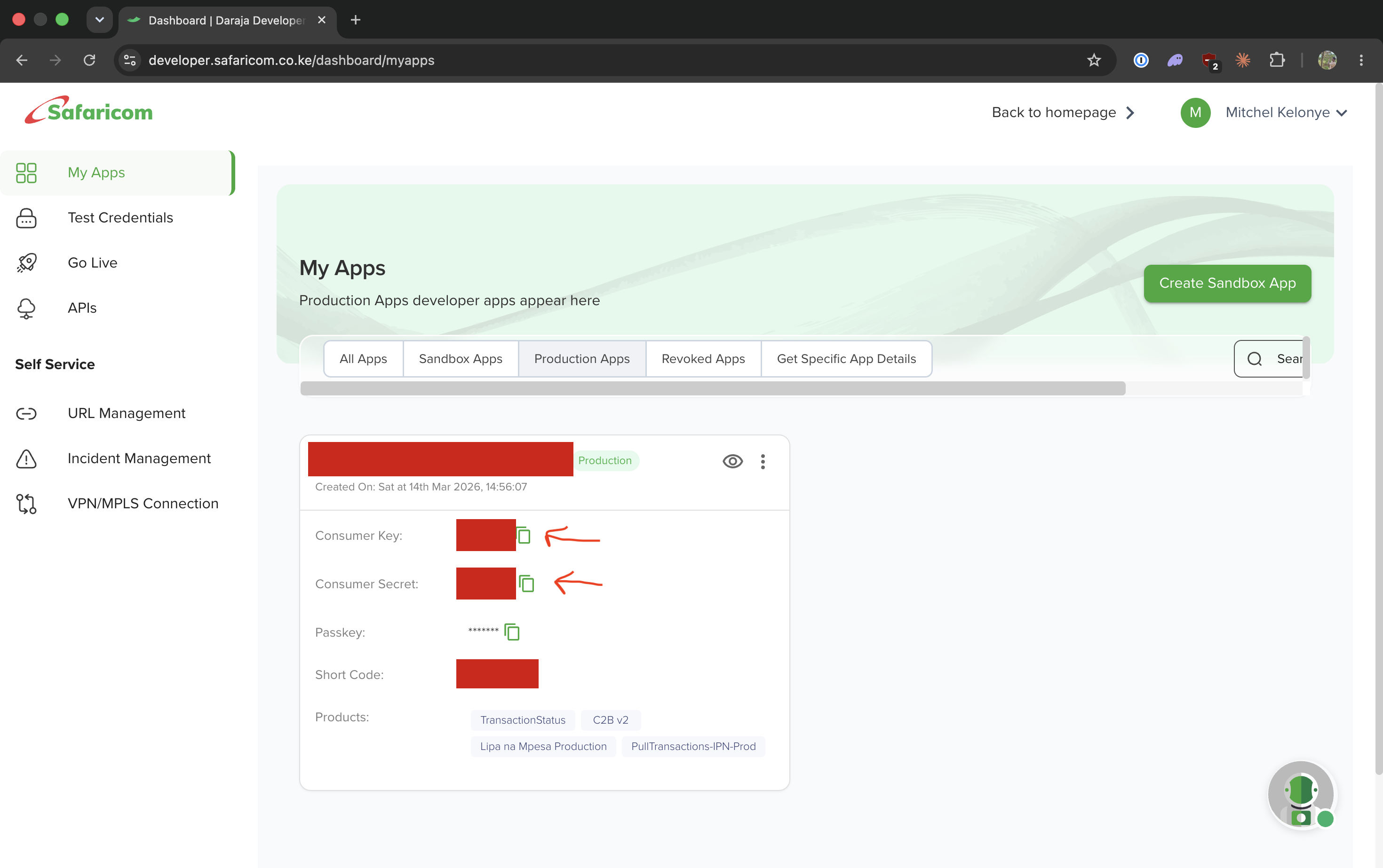
These two are what KodiSawa needs. Treat them like a password: do not post them anywhere public.
Step 5: Paste them into KodiSawa
In KodiSawa, go to Settings, then Workspace, then the M-Pesa tab.
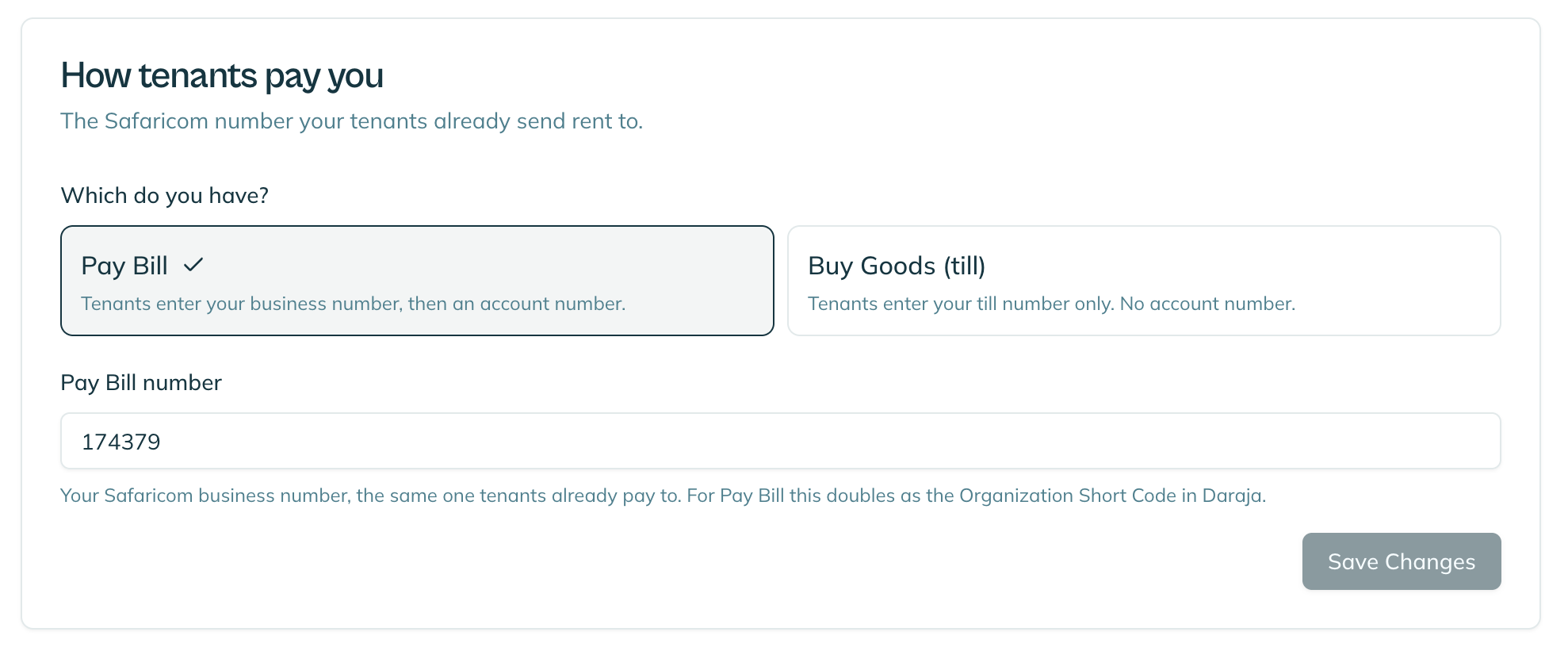
Under How tenants pay you, choose Pay Bill or Buy Goods (till).
- On Pay Bill, enter your Pay Bill number. That is the only number needed.
- On Buy Goods, you get two fields. Put the number tenants dial in Till number, and the number you gave Daraja in Store number.
Click Save Changes.
Then scroll to Daraja API credentials, paste your Consumer Key and Consumer Secret, and click Save Credentials. They are stored encrypted and are never shown to anyone again, including you.
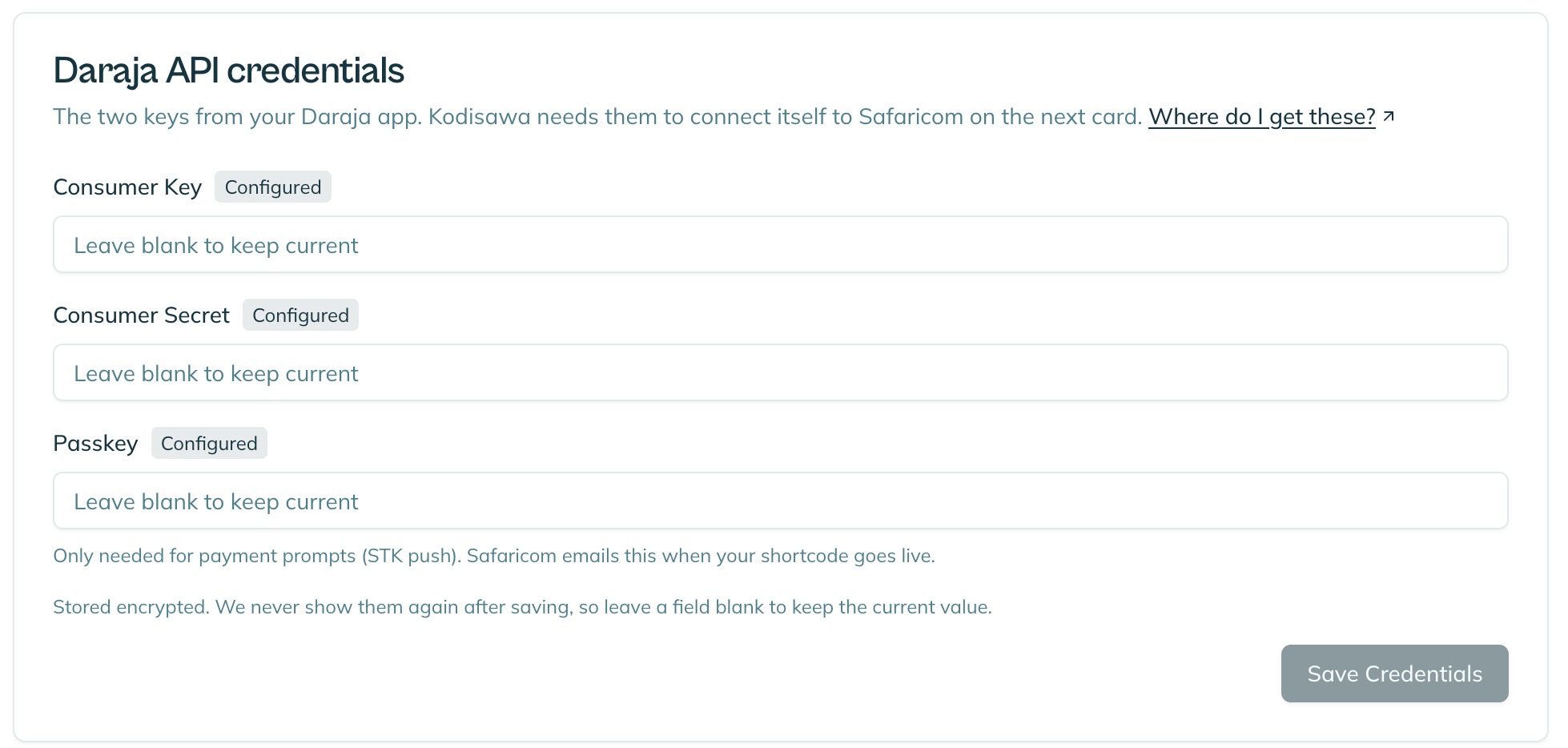
The Passkey field below them is only needed if you want to send tenants a payment prompt from KodiSawa. Leave it blank otherwise. Safaricom emails you a passkey when your shortcode goes live.
Step 6: Connect
On the Connect to M-Pesa card, click Connect. This is the step that tells Safaricom where to send your payment notifications.
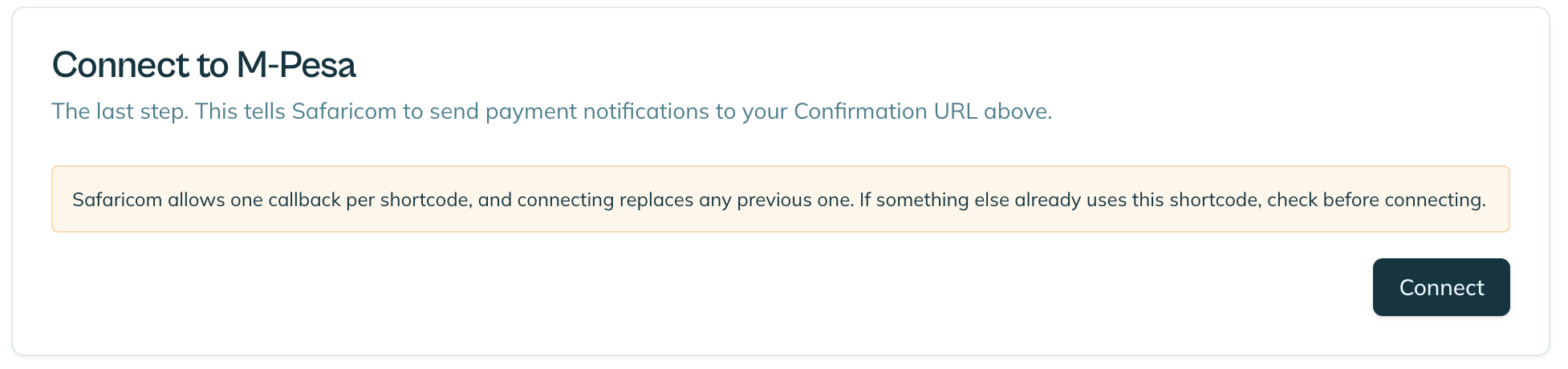
That is it. The next payment to your Pay Bill or till shows up in KodiSawa on its own.
Test it
Do not take our word for it. Set up one unit with rent of KES 10, pay it from your own phone, and watch the invoice go from unpaid to paid.
Pay from the phone number saved on that tenant’s record. On a till that is the only thing we can match on, so it is the honest test of your setup.
If something does not work
"An app with the shortcode provided already exists." That shortcode already has a live Daraja app. Do not create a second one and do not delete the existing app if anything is using it. Open the app you already have and copy its Consumer Key and Secret instead.
Payments arrive but no tenant is matched. On a till this is almost always the phone number. Open the payment on the Payments page, see which number it came from, and check it against the tenant’s record.
Nothing arrives at all. Safaricom allows one connection per shortcode. If another system was already connected to it, whichever connected last wins. Reconnect from the Connect card to point it back at KodiSawa.
Daraja will not accept your short code. On a till, make sure you are giving it the store number, not the till number tenants dial.
If you would rather not create a Daraja account at all, there is another way: ask Safaricom to connect it for you.